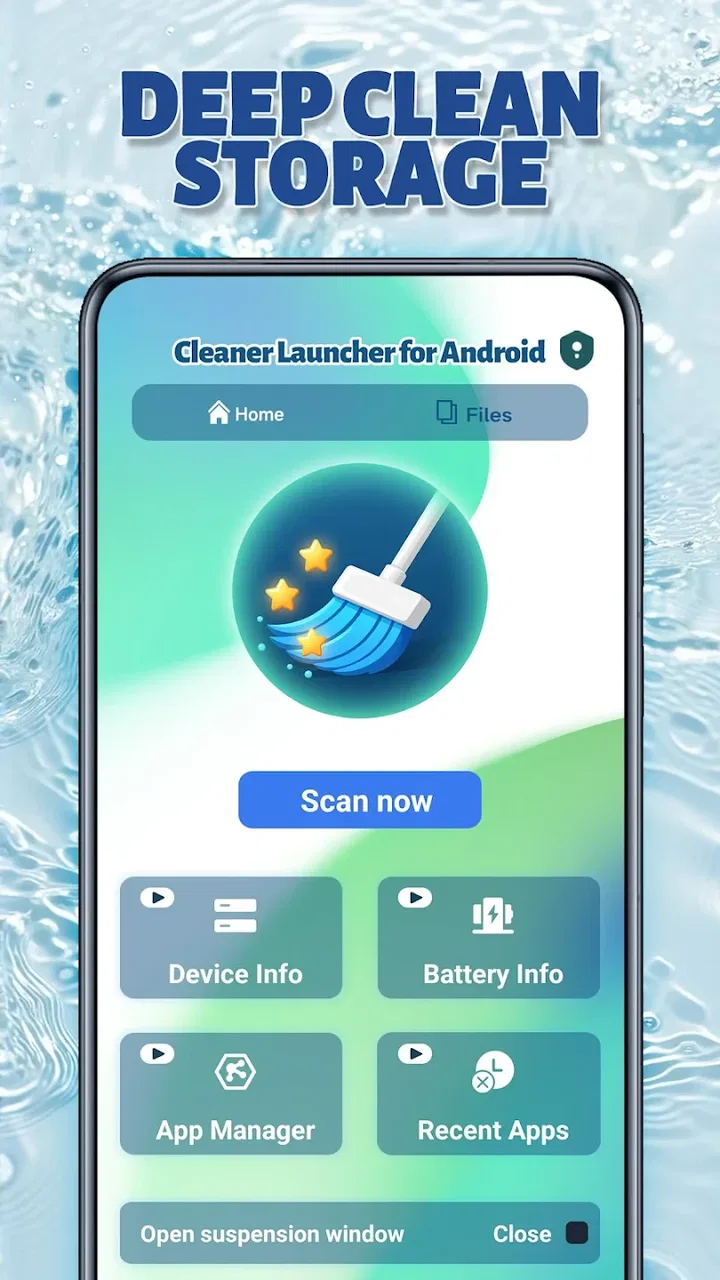
Cleaner Launcher for Android
- 3.5
- Rating
- 500.00K
- Installs
- Free
- Price

 Analysis by App-foxy
I approached Cleaner Launcher as a practical home-screen replacement rather than as a dramatic makeover for Android. Its purpose is straightforward: combine launcher functions with a cleaner, less cluttered way to reach the phone tools I use every day. That sounds simple, but launchers sit at the center of the Android experience, so even small setup problems can make the whole phone feel awkward. My experience is that this app is most interesting for people who want a lighter daily routine, not for users searching for a highly customizable visual theme.
Developed by Putul Host IT Dev, it is a free tools app for Android with an Everyone content rating. It has reached over 500 thousand installs, which gives it a meaningful user base without making it feel like an unavoidable default choice. The current release is version 1.0, and it works on Android 10 or later. I would keep those details in mind before installing: this is a new, focused launcher experience, so expectations should be practical rather than based on the depth of a long-established customization suite.
Getting past the first setup without making the phone harder to use
The first point where many users can get stuck is not the launcher itself, but Android’s default-app process. Installing a launcher and actually using it as the home screen are two different steps. If the phone continues opening its original home screen, Cleaner Launcher may appear not to work even though the installation completed correctly. I would begin by opening the app normally, following its own initial prompts, and then checking Android’s home-app selection if the old launcher keeps returning.
You May Also Like

 Blood Strike: 2.5 Anniversary
Blood Strike’s Loadouts Turn Every Drop Into a Tactical Gamble
A close look at Blood Strike’s custom loadouts: how fast access to signature weapons reshapes its battle royale rhythm, rewards preparation, and narrows the gap between fights.

 Pandora - Music & Podcasts
Pandora’s Music Is Easy to Start, but Harder to Recover
Pandora’s strength is its low-effort path from a seed to a station. Its weak spot is how much confidence it asks you to place in connection, setup, and quiet recovery.

 8 Ball Pool
 Is Built on Rivalries, Rematches, and Routine
A close look at the rivalries, rematches, shared routines, and unanswered safety questions that turn a quick pool match into a persistent mobile community.

 Samsung Music
’s Quiet Strength Is Playing What You Already Own
Its reach comes less from spectacle than from dependable access to a personal library. That simplicity is both the app’s strongest retention engine and its ceiling.

 AccuWeather: Weather Radar
AccuWeather Review: A Quick, Clear Forecast for Everyday Decisions
For everyday plans, the best forecast is the one you can understand quickly. AccuWeather makes rain timing, radar, and local conditions easy to act on, with a few trade-offs.

 Hill Climb Racing
Why Hill Climb Racing Still Turns Crashes Into One More Run
A tiny car, a bumpy hill and one more upgrade: Hill Climb Racing keeps resurfacing because its simple chaos makes every near-miss feel personal.
More From Our News Desk



This is also the moment to decide whether the change is worth keeping. A launcher affects the button or gesture used to return home, the first screen seen after unlocking, and the way app shortcuts are reached. I recommend trying it when you have a few quiet minutes rather than changing the home screen while rushing out the door. That simple choice prevents a common frustration: needing an app immediately and then not remembering where the new launcher places it.
Before judging the experience, I would check three basics. First, confirm that the phone is running a compatible Android release. Second, make sure the app has completed its initial opening rather than being stopped halfway through a prompt. Third, return to the home screen several times and test the normal navigation method. These checks sound obvious, but they separate a setup issue from a genuine design preference.
The most useful setup habit is to test the launcher with your real routine, not with an empty home screen. Open the apps you use for messages, calls, maps, banking, photos, and work. Then lock and unlock the phone, return home, and repeat the process. A launcher can look tidy during a quick glance while still slowing down the actions that matter most to you. Cleaner Launcher makes more sense when evaluated through repeated everyday movements.
Another point worth checking is whether the phone’s manufacturer adds its own home-screen behavior. Android devices often place system settings, gesture controls, and home-app choices in slightly different locations. If the launcher is installed but the old interface remains active, I would look for the phone’s default-app settings instead of repeatedly reinstalling the app. Reinstallation rarely solves a selection problem.
What the cleaner approach feels like in daily use
The appeal here is not that every Android phone suddenly becomes identical. The appeal is reducing the number of decisions between unlocking the device and reaching something useful. A cleaner launcher can help when the original home screen has accumulated too many icons, folders, widgets, and visual distractions. I found the concept especially suitable for someone who wants the phone to feel more like a tool than a constantly changing dashboard.
That benefit depends on how much clutter you bring into the new arrangement. Moving every old shortcut into the new home screen defeats the purpose. I would start with only the apps used several times a day and leave occasional apps accessible through the launcher’s broader app access. This creates a practical distinction between immediate actions and everything else, which is more valuable than simply choosing a different background.
A realistic example is a busy morning. I unlock the phone to check a message, open a calendar or travel app, and then put the device away. With a crowded standard launcher, I may swipe across several panels or search through folders. With a cleaner arrangement, the goal is to make those first actions predictable. Later, when I need a less frequently used utility, I can take an extra step without allowing that rare task to dominate the home screen.
The app’s store positioning also points toward phone maintenance, so I would think of it as a launcher with a cleaner-device mindset rather than as a full replacement for every maintenance tool. That distinction matters. A launcher can improve access and reduce visible clutter, but it cannot automatically fix every cause of a slow phone. If the underlying problem is storage pressure, a demanding background app, a system update, or aging hardware, changing the home screen may improve organization without changing performance.
Small workflow choices that make the biggest difference
One useful tactic is to separate “launch quickly” from “find occasionally.” Keep only the apps that support repeated actions close at hand. Put shopping, travel, editing, and one-off utilities out of the primary path unless you genuinely use them every day. This is a more durable setup than constantly rearranging icons after every download.
I would also test the back-and-home rhythm immediately. Some people rely heavily on the home button, while others use gestures. If returning home feels inconsistent, the problem may be the phone’s navigation configuration rather than the launcher’s layout. Try the same movement several times from different apps. If the result changes, record exactly what happened before changing multiple settings at once.
A second practical tip is to keep an alternative route to important apps during the trial period. For example, remember the app name well enough to use Android’s app search or the application settings if a shortcut is not where you expect. This avoids the false conclusion that an app has disappeared. Launchers change presentation; they do not normally change the existence of the installed application.
There is also a trade-off between simplicity and familiarity. A highly minimal home screen can make the phone calmer, but it can initially make common actions feel slower if you are used to large, obvious icons. I would give the layout several ordinary sessions before deciding. At the same time, I would not force myself to adapt indefinitely. A cleaner interface is only useful if it remains comfortable after the novelty wears off.
Recovering when the home screen or an app behaves unexpectedly
When a launcher appears frozen, fails to become the default, or seems to show an incomplete arrangement, I prefer a controlled recovery process. First, return to the home screen and wait briefly. Then close and reopen the launcher if the phone allows it. If the issue continues, restart the device and test again before making more changes. This sequence is simple, but it prevents several unrelated problems from being mixed together.
If the old launcher appears after pressing the home control, check which home app Android has selected. The key question is not whether Cleaner Launcher is installed; it is whether Android is sending the home action to it. On some phones, a system update or a change in default apps can alter that selection. Rechecking the home-app setting is more useful than repeatedly tapping the launcher icon.
If icons or shortcuts seem missing, search for the application by name through the phone’s normal app tools. Then ask whether the problem is visibility or installation. A shortcut can be absent while the underlying app remains available. Restoring every icon at once may recreate the clutter you were trying to remove, so I would add only the shortcuts that prove useful during the first few days.
For a launcher that opens but behaves strangely, I would note the exact action that triggers the problem: returning home from a particular app, unlocking the phone, rotating the screen, or using a gesture. That detail matters because vague reports such as “it does not work” make troubleshooting much harder. Test one change at a time, and avoid clearing app information casually if you are not comfortable rebuilding the setup afterward.
It is also sensible to keep the phone’s original home-app option in mind while evaluating Cleaner Launcher. If you need a dependable fallback, knowing how to switch back is reassuring. I would not treat switching back as failure; it is a normal comparison method. Use the original launcher for a short period, repeat the same daily tasks, and compare the number of steps and the amount of visual distraction rather than relying on first impressions.
When the launcher is not the real source of the problem
Not every slow response begins at the home screen. If an individual app takes a long time to open, closes unexpectedly, or struggles after you leave the launcher, the cause may be that app, the operating system, available storage, or the phone itself. Cleaner Launcher can change how you reach the app, but it does not automatically repair that app’s internal behavior.
The same applies to battery complaints. A new home screen may alter how the phone feels, yet battery life is influenced by screen use, mobile signal, background activity, and many other settings. I would compare battery behavior over normal days instead of blaming the launcher after a single session. If the drain appears only while using one particular application, investigate that application first.
Notifications deserve similar care. If an alert arrives late, check the notification settings and battery restrictions for the app that should send it. A launcher may affect where you see an alert or how you reach it, but the notification’s delivery can depend on Android and the originating app. Separating those layers helps avoid changing the launcher when the real adjustment belongs elsewhere.
Performance can also be affected by a phone that is nearly full or running many demanding processes. In that situation, a cleaner home screen may make the device feel more organized without making it materially faster. I see that as an important boundary: the app can support a better workflow, but it should not be treated as a universal repair utility.
Who will benefit, and who should choose another kind of launcher
I think this app fits people who want a simple Android home experience and are willing to spend a little time deciding what deserves immediate access. It may suit an older family member who feels overwhelmed by a busy screen, a work-focused user who wants fewer distractions, or anyone whose existing layout has become a pile of forgotten shortcuts. The Everyone rating also makes it approachable for a broad audience, although every user should still pay attention to the normal Android setup prompts.
I would be more cautious if your priority is deep visual customization. Users who want elaborate icon packs, extensive gesture rules, detailed widget control, or a mature ecosystem of appearance options may prefer a long-established customization launcher. The cleaner approach is valuable precisely because it narrows the experience. That can feel refreshing to one person and restrictive to another.
I would also skip it if the only reason for installing it is to cure a serious performance problem. Start by checking storage, system updates, problematic applications, and device health. If those areas are responsible, a launcher change may add another variable without addressing the cause. In that case, the phone’s existing launcher or a maintenance-focused solution may be the more appropriate place to start.
How I would decide after the trial
The app has an average rating of 3.5 from around 478 ratings, alongside 84 written reviews. I read that as a mixed but useful signal: enough people have tried it to show real interest, while the score suggests the experience will not be equally comfortable for everyone. I would not install it expecting universal approval. I would judge it by a short checklist of personal tasks instead.
Can I reach my most-used apps without thinking? Does the phone return home consistently? Do I understand where less-used apps are located? Does the cleaner presentation reduce distraction rather than hide something important? If the answer is yes across several normal days, the app is doing its job for me. If I keep searching for familiar controls or switching back to the original launcher, the simpler design is not actually simplifying my routine.
One final consideration is the release stage. Version 1.0 can be perfectly usable, but it also encourages a little patience with setup friction and personal compatibility. I would keep the initial arrangement modest, learn how the phone handles the new home app, and avoid judging every detail during the first few minutes. At the same time, I would not ignore repeated problems that interfere with calls, messages, or essential navigation.
Cleaner Launcher is best understood as a focused, free tools app that tries to make the Android starting point more orderly while keeping the idea of phone cleaning close to the experience. I like it for users who want fewer distractions and a deliberately small set of front-and-center shortcuts. I would recommend it to a friend who values a calmer home screen and is comfortable checking Android’s default-app settings during setup.
My practical verdict is balanced: try it when clutter is the problem, not when the phone has a deeper performance fault. Give it a real daily routine, keep a fallback route to important apps, and troubleshoot the home-app selection before assuming the installation failed. If those checks lead to a smoother path from unlock to action, Cleaner Launcher is a sensible free experiment. If you need extensive customization or a proven solution for system-wide slowness, the usual alternatives will probably serve you better.
FAQs for Cleaner Launcher for Android
01What is Cleaner Launcher and how does it enhance my Android experience?
Cleaner Launcher is an application designed to optimize and streamline your Android device's home screen. It offers a clutter-free interface by organizing apps and widgets efficiently. With features like customizable themes, quick access tools, and battery-saving modes, it enhances both the aesthetic and functional aspects of your device, providing a smoother user experience.
02Can Cleaner Launcher improve my device's performance?
Yes, Cleaner Launcher can improve your device's performance by minimizing resource usage and eliminating unnecessary processes. It includes features such as RAM boosters and cache cleaners, which help in reducing lag and increasing the overall speed of your device. This makes multitasking more seamless and apps more responsive.
03Is Cleaner Launcher compatible with all Android devices?
Cleaner Launcher is compatible with most Android devices running Android 5.0 (Lollipop) and above. However, some features may vary depending on the device's hardware specifications and Android version. It's recommended to check the app's compatibility on the Google Play Store page before downloading to ensure full functionality.
04Are there any privacy concerns with using Cleaner Launcher?
Cleaner Launcher prioritizes user privacy by ensuring that it does not collect personal data without consent. It operates under strict privacy policies, requiring only essential permissions to function effectively. Users can customize privacy settings to control what information the app can access, ensuring a secure user experience.
05Does Cleaner Launcher offer customization options for personalization?
Yes, Cleaner Launcher offers extensive customization options that allow users to personalize their home screens. You can choose from a variety of themes, icon packs, and widgets to create a unique look. Additionally, it supports gesture controls and shortcuts, enabling a personalized and efficient navigation experience tailored to your preferences.
Pros
- Intuitive user interface enhances usability.
- Customizable themes for personalization.
- Efficient RAM management boosts performance.
- Quick access to frequently used apps.
- Battery saver extends device life.
Cons
- Advertisements can be intrusive at times.
- Limited widget options available.
- Some features require in-app purchases.
- Occasional lag on older devices.
- Permissions might raise privacy concerns.

Cleaner Launcher for Android
Gallery